By Spike POS · Published · Updated
How to Use a Laptop as a POS System
Prepare a laptop for counter sales: browser setup, staff access, power, internet, payment collection and receipt printing checks.
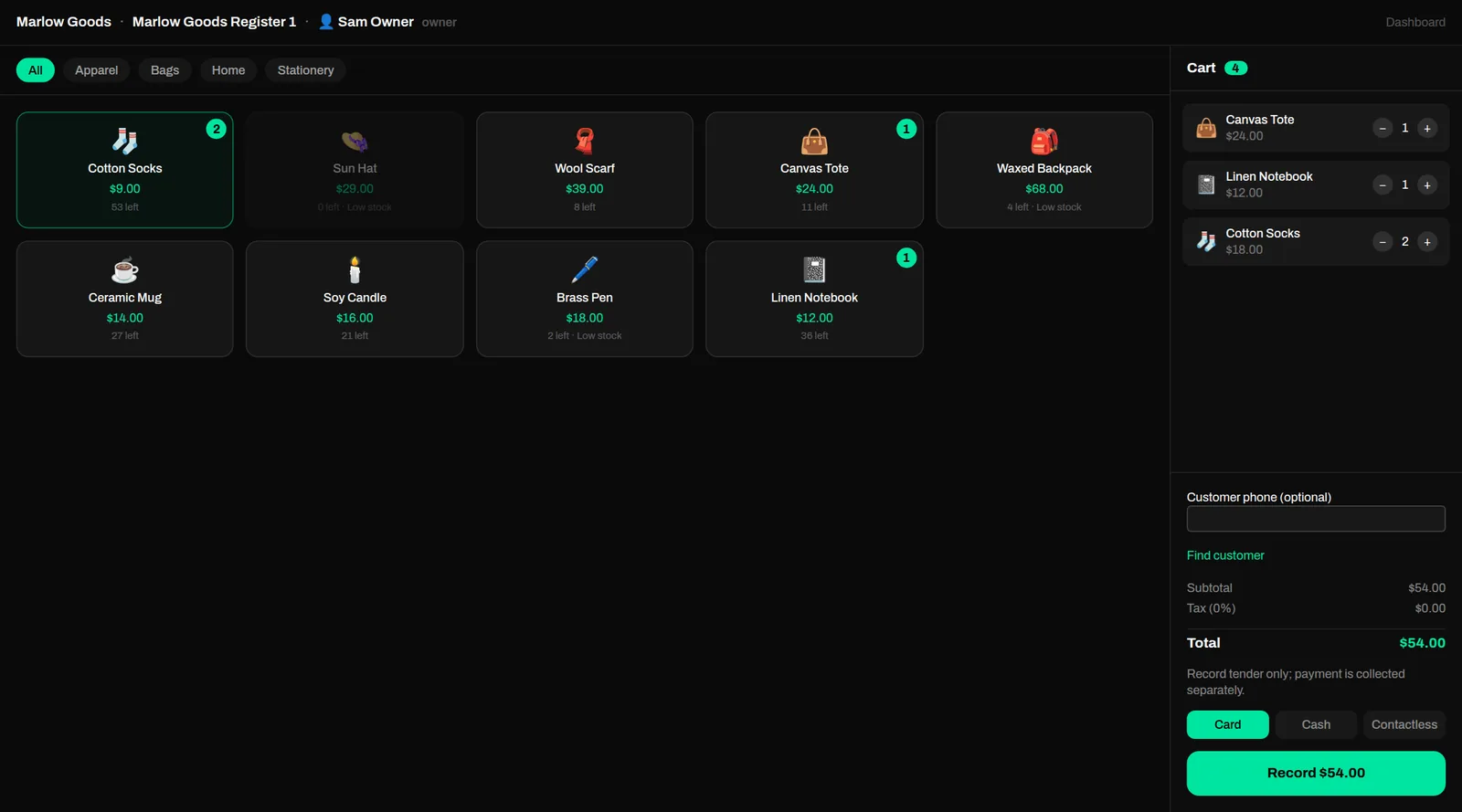
Check the physical counter first
A laptop can run a browser-based register without a dedicated POS terminal. Place it where the cashier can read the screen and reach the keyboard without turning away from the customer. Keep power connected and liquids away from the device.
Test the real display size and browser zoom. A crowded cart or a product grid that requires constant scrolling can slow checkout even when the software runs correctly. A phone test does not replace a test on the laptop at the counter.
Prepare the browser and access
Use a maintained browser and install device updates before the shift. Sign in to Spike POS, load your products and confirm the register is associated with the intended store. The current register code uses Web Locks for safe tab ownership, so use HTTPS and a browser that supports that feature.
Give staff individual logins. On shared devices, separate browser profiles help keep local recovery data scoped correctly. Do not clear browser storage while there are pending transactions; recovery data can be lost.
- Connect reliable power and internet, and plan a backup connection.
- Check store, currency, prices and staff permissions.
- Keep one active tab for the register and close unrelated heavy apps.
- Test a receipt and the day-end reconciliation process.
Payments and printing still need setup
Your laptop is the register screen, not a card terminal. Collect card payments through a separate provider and use the corresponding tender label when recording the sale.
Browser receipt printing requires an installed printer, driver and paper size. A USB or network printer must work from the laptop’s operating system first. Test 80 mm paper in print preview and on paper before the busy shift.
Plan for disconnections honestly
Login and a fresh register load require connectivity. Newer operations code can queue uncomplicated cash sales from an already-loaded register, but this is not offline startup or a guarantee that all workflows work without internet.
Confirm what your deployed account supports. Pending sales are not confirmed receipts, stock changes or reports until the API accepts them. If continuity is critical, test your backup connection and maintain a reconciliation procedure.